
FIRST TIME SETUP
- Position the speakers with the Active Speaker on the right and the Passive Speaker on the left.
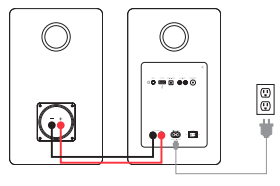
- Connect one end of the speaker wire to the binding posts on the back of the Active Speaker and connect the other end of speaker wire to the binding posts on the back of the Passive Speaker. IMPORTANT: Ensure the same color wire is connected to the same color binding posts on each speaker.
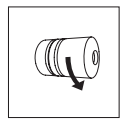
- Loosen the binding post by turning the cap counter-clockwise. A hole in the post will be exposed.
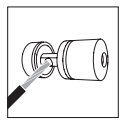
- Insert the speaker wire into the hole. Ensure the bare wire and cap are making contact, additional insulation can be removed from the wire if needed.
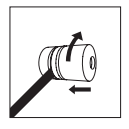
- Turn the cap clockwise until the speaker wire cannot be removed.
- Connect the power adapter to the back of the Active Speaker and set the power switch to the ON position.
Connecting Ai41 or Ai61 to a turntable (RCA Input)
- Connect the RCA cable to the turntable or preamp.
- RT80 and RT81 include a built-in preamp. Set the preamp switch to LINE when connected to Ai41/Ai61/Ai81.
- RT82, RT83, RT84, and RT85 require an external preamp such the Fluance PA10 to boost their phono signal. Without a preamp, volume will be extremely low.
- Connect the other end of the RCA cable to the back of the active speaker.
- Press the control knob or the source selection button on the remote until the LED on the speaker turns green.
Connecting Ai41 or Ai61 to a TV (Optical/Toslink Input):
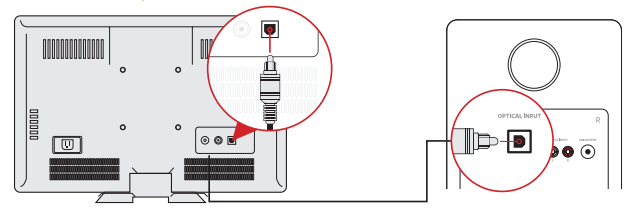
- Check your optical cable for protective caps, remove these if present.
- Connect the optical cable to the source device (TV, Computer, Game Console, etc).
- Connect the other end of the optical cable to the optical input on the back of the active speaker.
- Press the control knob or source selection button on the remote until the LED on the speaker turns white
- Adjust the volume on the speaker as well as the source device.
No sound when connected with an optical cable?
The Ai41 and Ai61 do not support Dolby Digital Audio or DTS Audio. Locate the audio output settings on your source device and ensure Dolby Digital is turned off.
The correct audio output setting is commonly referred to as PCM or Stereo. Some TVs also require that audio output be enabled.
This setting may be referred to as External Speakers. Ensure this is selected as your speaker/audio output. For instructions on a specific device, please consult the device’s user manual.
Connecting Ai41 or Ai61 to a smartphone (AUX/Bluetooth):
- Press the Control Knob to select the Bluetooth® input (Blue LED).
- Pair to “Fluance Ai61” or "Fluance Ai41" on your source device.
- Use the Remote to control playback and volume. If the volume is too low, you can also adjust volume on your source device. Be sure to disable any volume settings in the app such as volume normalization ,which can affect the overall volume of your music.
- If your device will not connect or another device is connected to the speakers already, press and hold the Play/Pause button on the remote or press the Bluetooth Pairing Reset Button on the back of the speaker.
Connecting a subwoofer:
IMPORTANT: When a subwoofer cable is connected, the Ai41 and Ai61 will automatically cut frequencies below 80Hz to optimize performance. The subwoofer cable must be removed to resume full frequency playback.
- Connect the subwoofer cable to your powered subwoofer's LFE/Low Level input
- Connect the other end of the subwoofer cable to the back of the Active Speaker.
- Adjust the volume on the subwoofer to your preference.